
Guide · Google Gemini
Your meetings in Google Gemini
Put Sæga's folder in Google Drive and you can ask Gemini about everything that was said: what you decided, who promised what and what has happened since the last meeting.
In Sæga
- Settings → Recording → Meetings → Keep every transcript as a file. Turn it on and choose a folder. The picker opens in a folder your cloud already syncs, if you have one.
- Projects become folders. A meeting in a project goes in the project's folder, the rest in
Inbox. When a meeting changes project its file moves too, as long as you haven't edited it. - Name and project while the meeting runs. Click the name in the meeting panel to type a new one, and pick the project in the menu below it.
File transcripts (audio and video files you transcribe) go in the same folder. Only want one project's meetings: Edit Project → Keep a Markdown copy of each meeting in a folder.
To Google Drive
Install Google Drive for Mac (Google's own app) and sign in. Then pick Google Drive under Save transcripts to when you create or edit a project in Sæga. The files land in My Drive/Sæga/<project>, and Drive for Mac syncs them by itself.
If Google Drive isn't among the choices, for example because you mirror Drive to a folder of your own, pick Another folder… and point to your Drive folder.
In Gemini Notebook
Gemini Notebook (formerly NotebookLM) answers only from the files you add, and shows where in the file the answer is.
- Open notebook.google.com and choose New notebook.
- Choose Add sources and then Drive.
- Search for the meeting or the project, select the files and choose Insert.
- Ask your question in the box at the bottom.
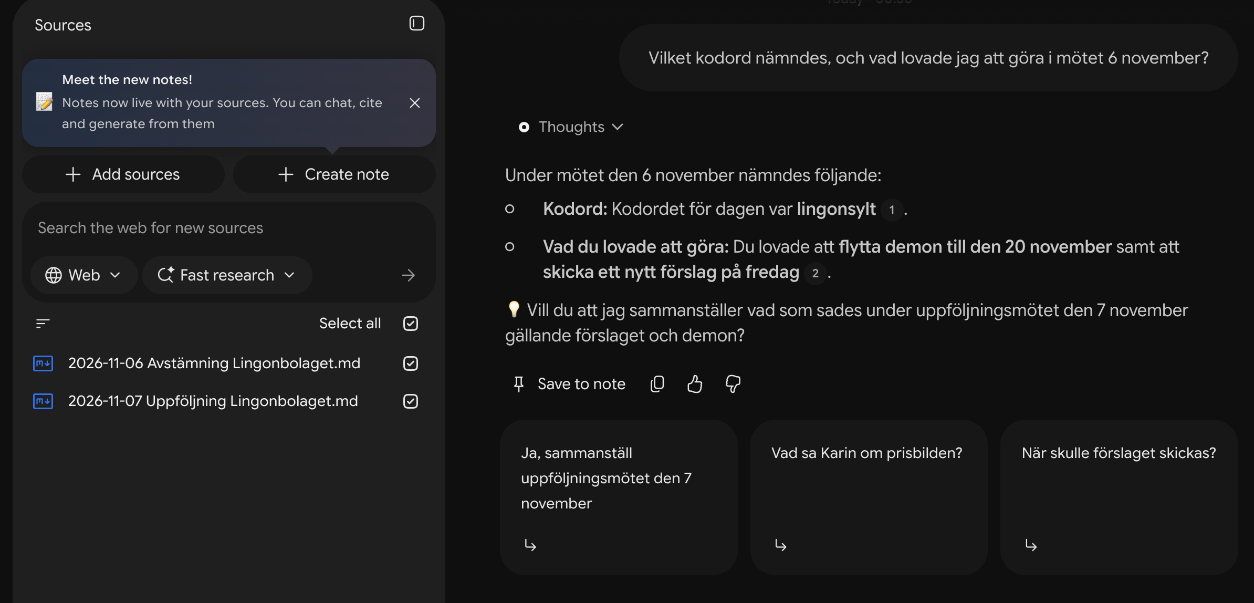
Try for example:
What did I promise in the latest meeting with Lingonbolaget, and has anything happened since? Use the fields start and projects.
In the Gemini app
In Gemini you can type @Google Drive followed by your question. This needs Google's smart features for Workspace to be turned on in the account; otherwise Gemini says it can't reach Drive. Gemini Notebook works without that setting.
What happens to your data
Sæga writes the files on your Mac and never uploads anything. Your own sync, Google Drive, takes them on, and from there that service's terms apply. The files are not encrypted like Sæga's own transcripts, so anyone who can open the folder can read them. The audio never goes with them.
When you delete a meeting in Sæga, it asks whether the file should go too. A file you have edited always stays.
Common questions
Do I have to upload the files myself?
No. With Google Drive for Mac the folder syncs by itself. You only choose which files a notebook in Gemini Notebook should use.
Does the notebook update when the meeting changes?
Gemini Notebook reads the source when you add it. If you have changed the name or notes in Sæga afterwards, you can add the file again.