
iPhone and iPad
You speak. Sæga writes, on your iPhone
Dictate in any app, record a meeting or a lecture, and translate what you said. Sæga turns speech into text right on the phone, in Swedish, Danish and English, even in flight mode. Free, with no account and no trial.
Free · No account · Swedish, Danish, English · Speech stays on the phone · iOS 26
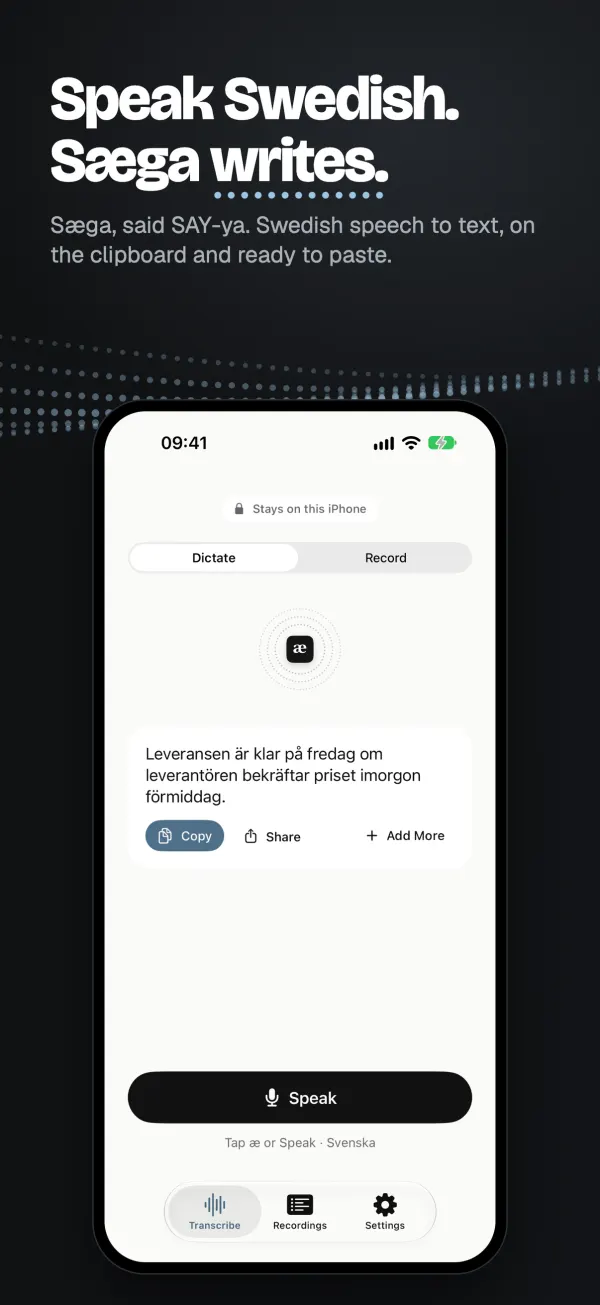
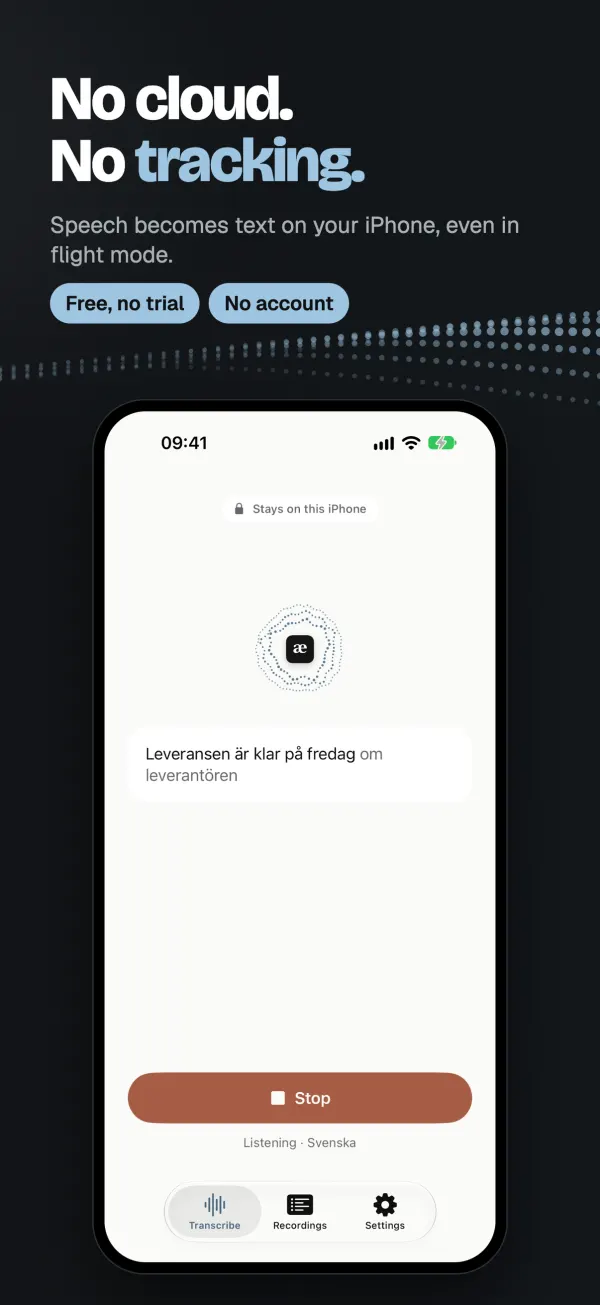
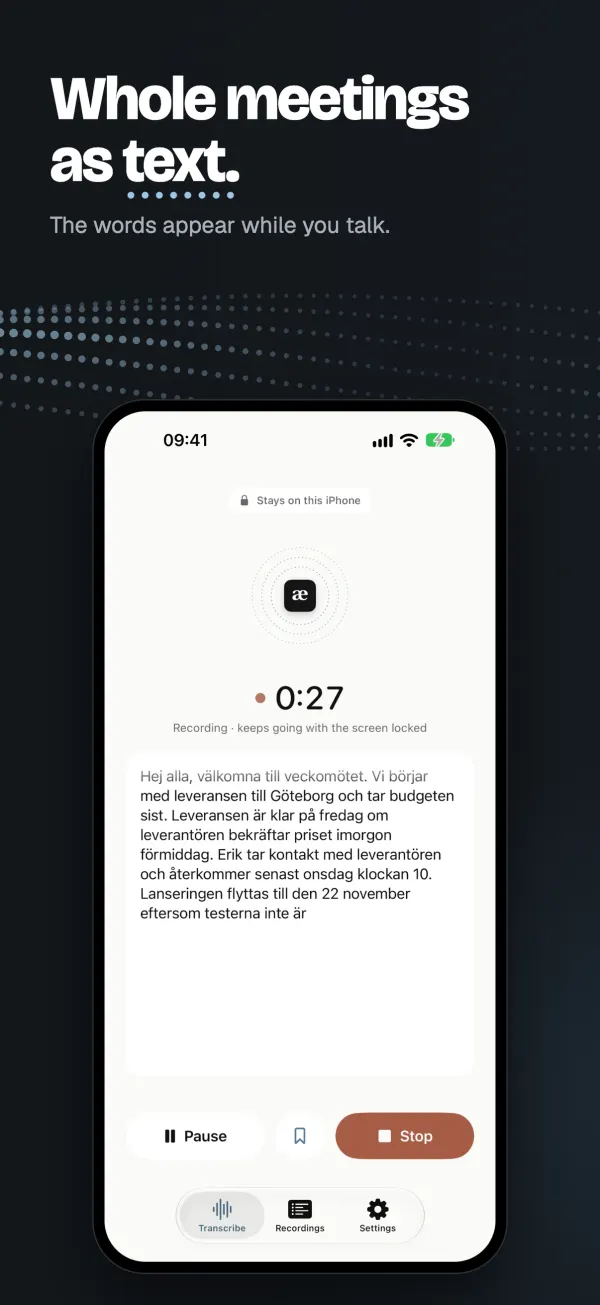
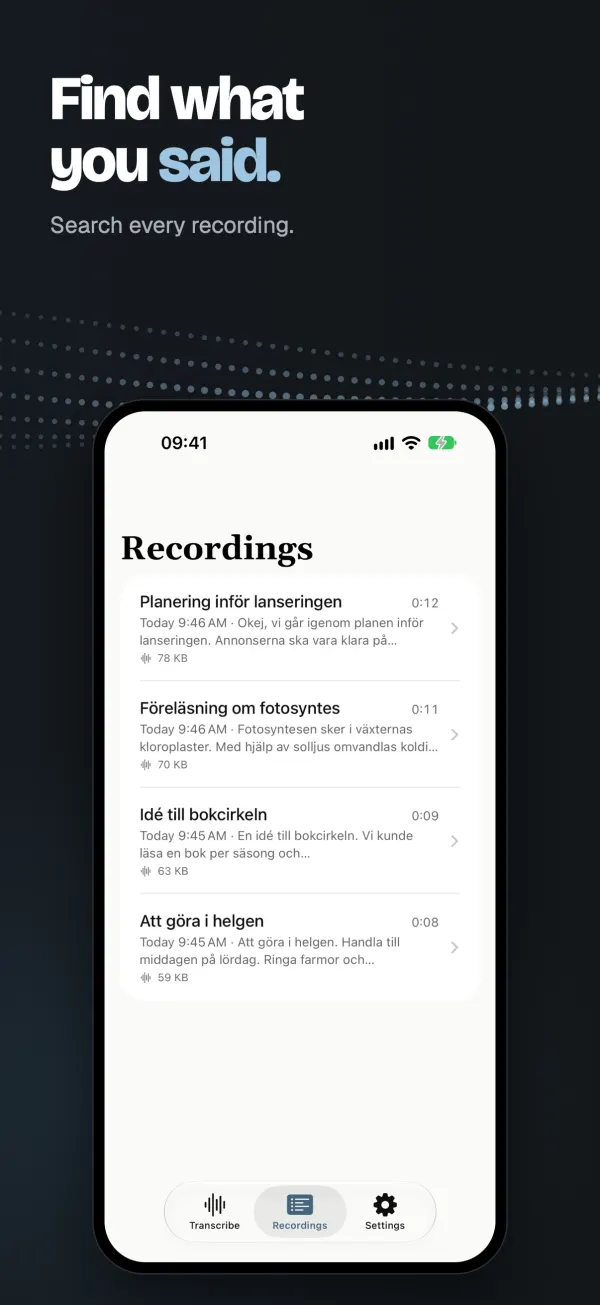
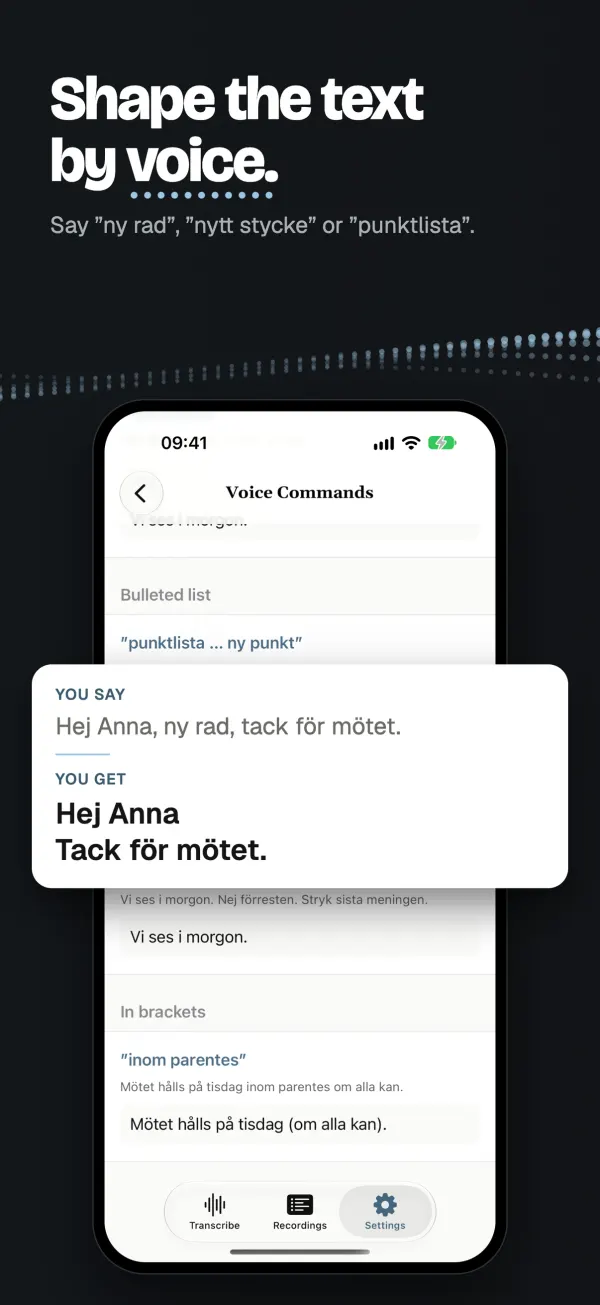
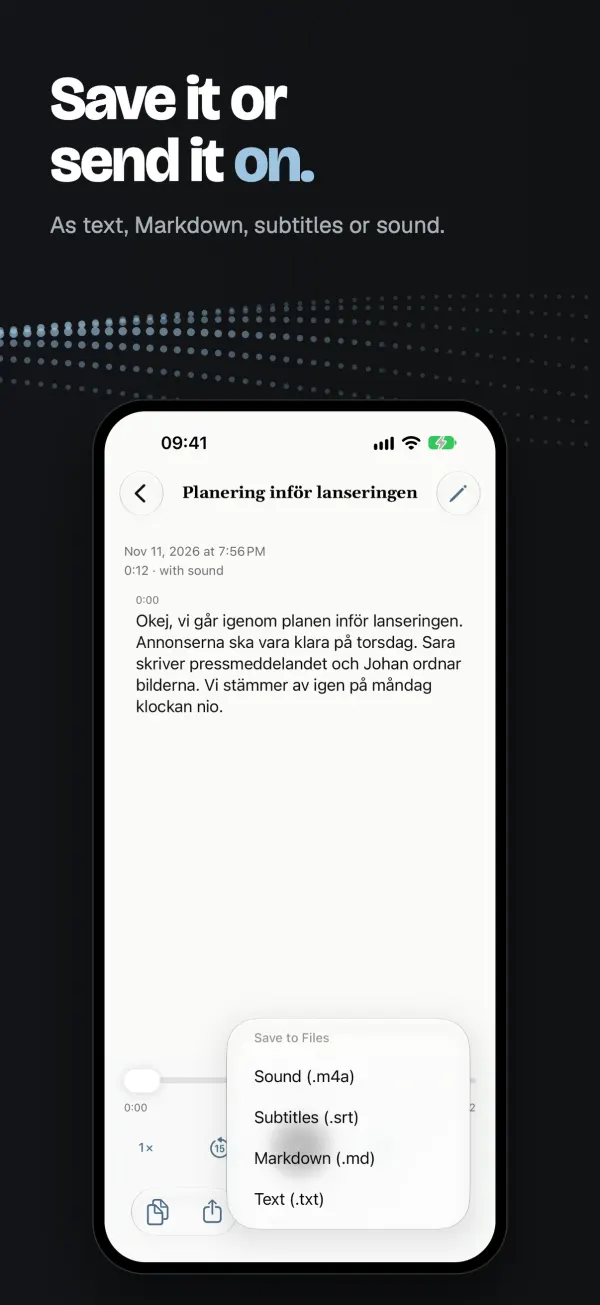
The App Store screenshots, taken in the app. The app is shown in Swedish.
Up and running in a minute
The first time, Sæga takes you through a few short steps. You choose what you want to use the app for and which language you speak before anything downloads, try the microphone, and can turn on the keyboard with a checklist. Your first sentence is shown when you are done. The introduction stays under Settings, Show the Introduction.
New in 1.2
- Summarize a recording. Apple Intelligence writes a headline and the main points right on the phone, free and with nothing sent anywhere. Needs an iPhone 15 Pro or later, or an iPad with M1 or later.
- Your own dictionary. Add, change and remove words under Settings, Dictionary, and Sæga writes them your way from the next dictation.
- Subtitles as WebVTT. Save a recording's subtitles as .vtt, beside .srt.
- A clearer start. You choose your language before anything downloads and always see how far the download has come. If you leave the app, the download picks up where it was when you come back.
- Easier keyboard setup. A checklist helps you turn it on, step by step.
In 1.1
- A new introduction. Hear and see speech become text, and choose what you'll use Sæga for: dictating, meetings, lectures or translating conversations. The app starts in the mode that fits, and the introduction stays in Settings, Show Introduction.
- The language pack up front. Choose meetings or translating and Sæga asks your phone to fetch Apple's language pack while the speech model downloads.
- Start without unlocking. The welcome shows how to put Sæga in Control Center, on the Lock Screen or, where your iPhone has one, on the Action button.
- Every language in Settings. Get, cancel or remove Swedish, Danish and English right in the list.
- English voice commands have their own page in Settings, with examples.
- Send to Mac. With Sæga 1.6 or later on your Mac, send a recording there, already written, with Save or Send, Send to Mac. You can bring your Mac dictionary to the phone too.
Dictate
Tap, speak, tap again. The text is on the clipboard, ready to paste into Messages, Mail or any other app. Dates and numbers come out as digits. In Swedish and English, voice commands like “new line” and “new paragraph” shape the text.
The Sæga keyboard
Switch to Sæga’s keyboard in any app, tap the big microphone and speak. The words land where you are typing. After a dictation the microphone can stay ready for a while, so the next one starts at once. You choose how long.
The keyboard asks for Full Access. It is only there so the keyboard can ask the Sæga app on the same phone to listen and bring the words back. Sæga reads nothing you type and sends nothing anywhere.
Translate on the phone
Translate what you recorded or dictated into Swedish, English, Danish or Norwegian. While you record, you can also see the translation sentence by sentence, under the original. It is done on the phone with Apple’s translation, and the recording is not changed.
Record meetings and lectures
Recording goes on with the screen locked, and the words appear while you talk. It is written piece by piece as it goes, so the text is ready right after you tap Stop. A tap marks a moment you want to find again, and an incoming call pauses the recording instead of ending it.
Everything you record and dictate is kept in one place. Search the text, play from a paragraph, fix a word that came out wrong, and save as text, Markdown, subtitles (.srt or .vtt) or sound.
Summarize on the phone
Tap Summarize at the top of a finished recording, and Apple Intelligence writes a headline and the main points right on the phone. It is free and nothing leaves the phone. The summary is a short overview: in long meetings it can miss decisions, and it never says who does what. The text below it is always what was said.
It needs Apple Intelligence, turned on, on an iPhone 15 Pro or later or an iPad with M1 or later, in a language Apple Intelligence can write. Without it, everything else in Sæga works as before.
Your own dictionary
Teach Sæga names and words it would otherwise spell wrong. Under Settings, Dictionary, write what you say and how Sæga should write it. It applies from the next dictation and recording, and the dictionary stays on the phone. With Sæga on your Mac, you can also bring the dictionary over from there.
Speech stays on the phone
Sæga writes the text on your iPhone or iPad, not in the cloud. Nothing you say is sent to us, to Apple or to anyone else. The app fetches the speech model for your language once, and Apple may fetch language files the first time you translate. After that, everything works in flight mode. On the App Store the app carries Apple's privacy label Data Not Collected: no analytics, no sign-in and no tracking.
On iPad: side by side
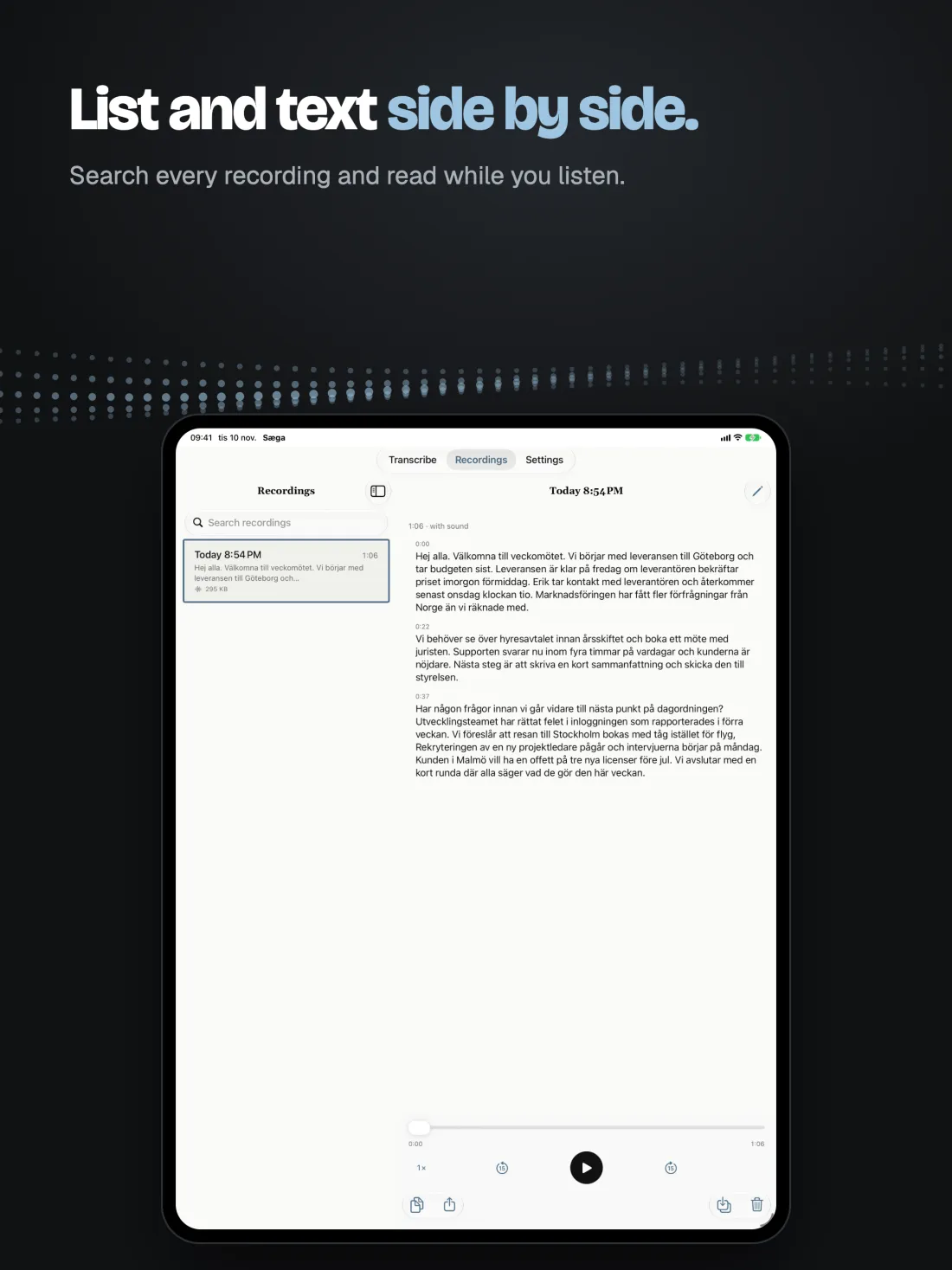
On iPad the list and the text sit next to each other. Search every recording and read while you listen.
Sæga is on the Mac too
Dictate in every app on your Mac, free at saega.app. The Mac app also records meetings and handles more languages. With Sæga 1.6 or later on your Mac, you can send a recording there, already written: Save or Send, Send to Mac. You can bring your Mac dictionary to the phone too. Otherwise, copy the text on your iPhone and paste it on your Mac, signed in with the same Apple ID on both, or share it with AirDrop.
Questions
What does Sæga cost on iPhone?
Nothing. Dictation, recording, the keyboard, translation and summaries are free, with no account and no trial.
Is anything I say sent to the cloud?
No. Speech becomes text on your iPhone or iPad. The app fetches the speech model for your language once, and Apple may fetch language files the first time you translate. After that it works in flight mode. The text leaves the phone only if you share it or save it somewhere else yourself.
Which languages does the app understand?
Speech in Swedish, Danish and English. The app itself is in Swedish, English, Danish and Norwegian (Bokmål), and it translates into Swedish, English, Danish and Norwegian. Norwegian speech isn't supported in the iPhone app today. The Mac app handles Norwegian.
Why does the keyboard want Full Access?
So the keyboard can ask the Sæga app on the same phone to listen and hand the words back. Sæga reads nothing you type and sends nothing anywhere. Without Full Access you can type, but not dictate.
How do I add the keyboard?
Open Sæga and go to Settings, where the guide is. It opens the iPhone's Settings for you: add Sæga under Keyboards and turn on Allow Full Access. In any app, press and hold the globe key and pick Sæga.
Why does translation want to download something?
Translation is done by Apple's translation on the phone. The first time you translate between two languages, iOS may download its language files from Apple. iOS handles that, and after that it works offline.
Why can't I summarize?
Summaries are written by Apple Intelligence on the phone. They need Apple Intelligence turned on, on an iPhone 15 Pro or later or an iPad with M1 or later, and a language Apple Intelligence can write. If something is missing, Sæga tells you why, and the rest of the app works as usual.
What do I need?
An iPhone or iPad with iOS 26 or iPadOS 26 or later. The speech model is fetched once per language, preferably over Wi-Fi: Swedish about 620 MB, Danish about 590 MB and English about 560 MB.
Do I need the Mac app?
No, the app works on its own. With Sæga 1.6 or later on your Mac, you can send a recording there, already written, with Save or Send, Send to Mac. Otherwise, copy the text on your iPhone and paste it on the Mac, or send it with AirDrop.
Can I record phone calls?
No, Sæga cannot. An incoming call pauses the recording instead of ending it. Only record other people when they know about it.
Sæga on your iPhone
Free, with no account. Speech stays on the phone.