
Guide · Subtitles
Subtitle a video, ready to send
Sæga turns a film into a folder you can send on: subtitles in the film's own language and, if you like, other languages, a film per language with the text in the picture, and a short note on which file fits where. You go through four steps, and Sæga shows you what to check before anything goes out.
From Sæga 1.8 for Mac. Subtitles in the film's own language are made on your Mac and are free. Translated subtitles are part of Pro.
Open Subtitle a Video
Home and Transcribe have the card Subtitles for a film. Click Subtitle a Video…, or drop the film straight on the card. The Subtitle a Video window has four steps: File, What you want, Review and Share.
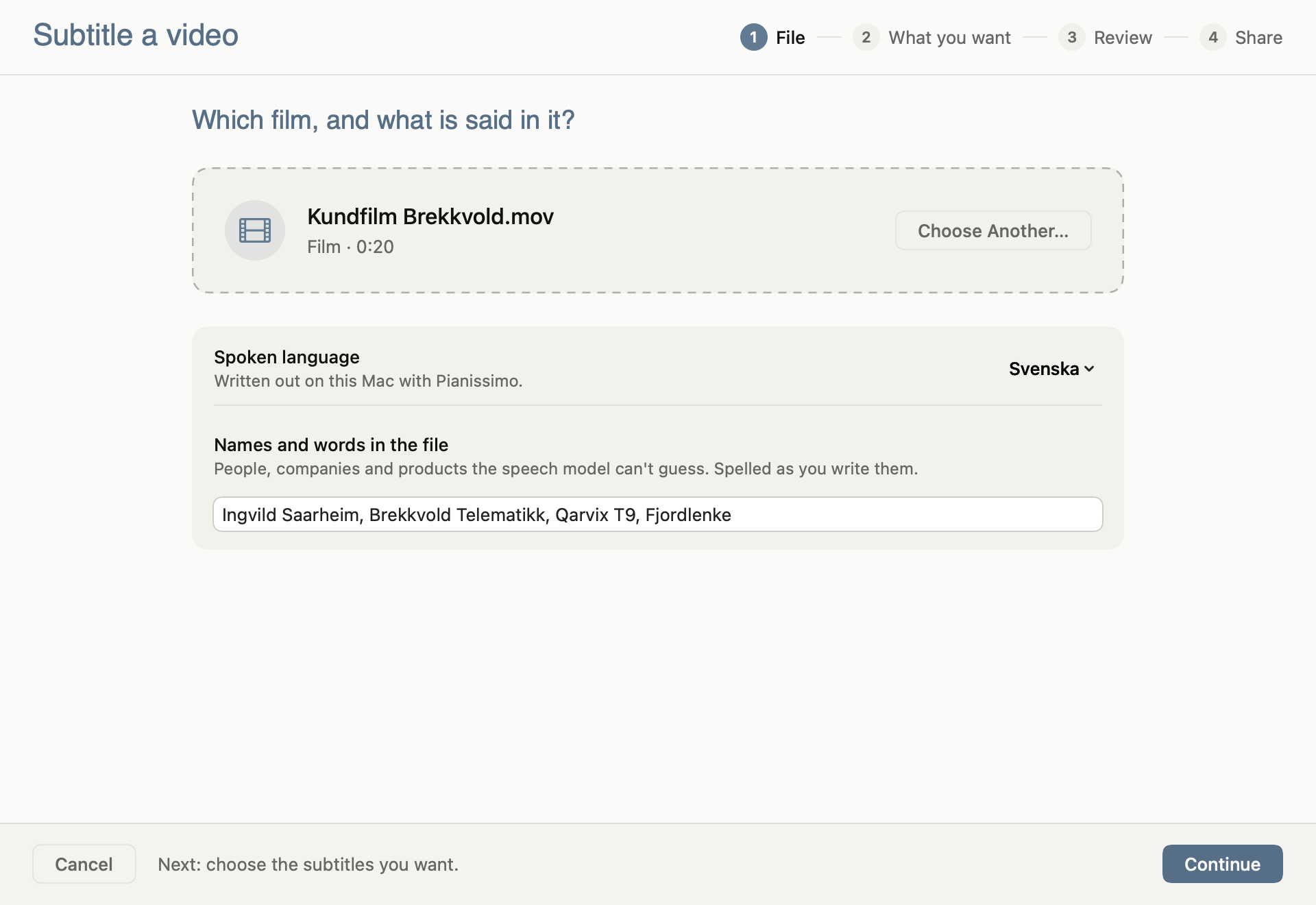
1. File
- Choose the film. Drop it in the box or click Choose Film… (Command + O). Sound alone works too; you then get the subtitle files without films.
- Choose the language spoken under Spoken language.
- Type the names under Names and words in the file: people, companies and products the speech model can't guess, separated by commas. They are spelled as you write them, in the translations too.
- Click Continue.
2. What you want
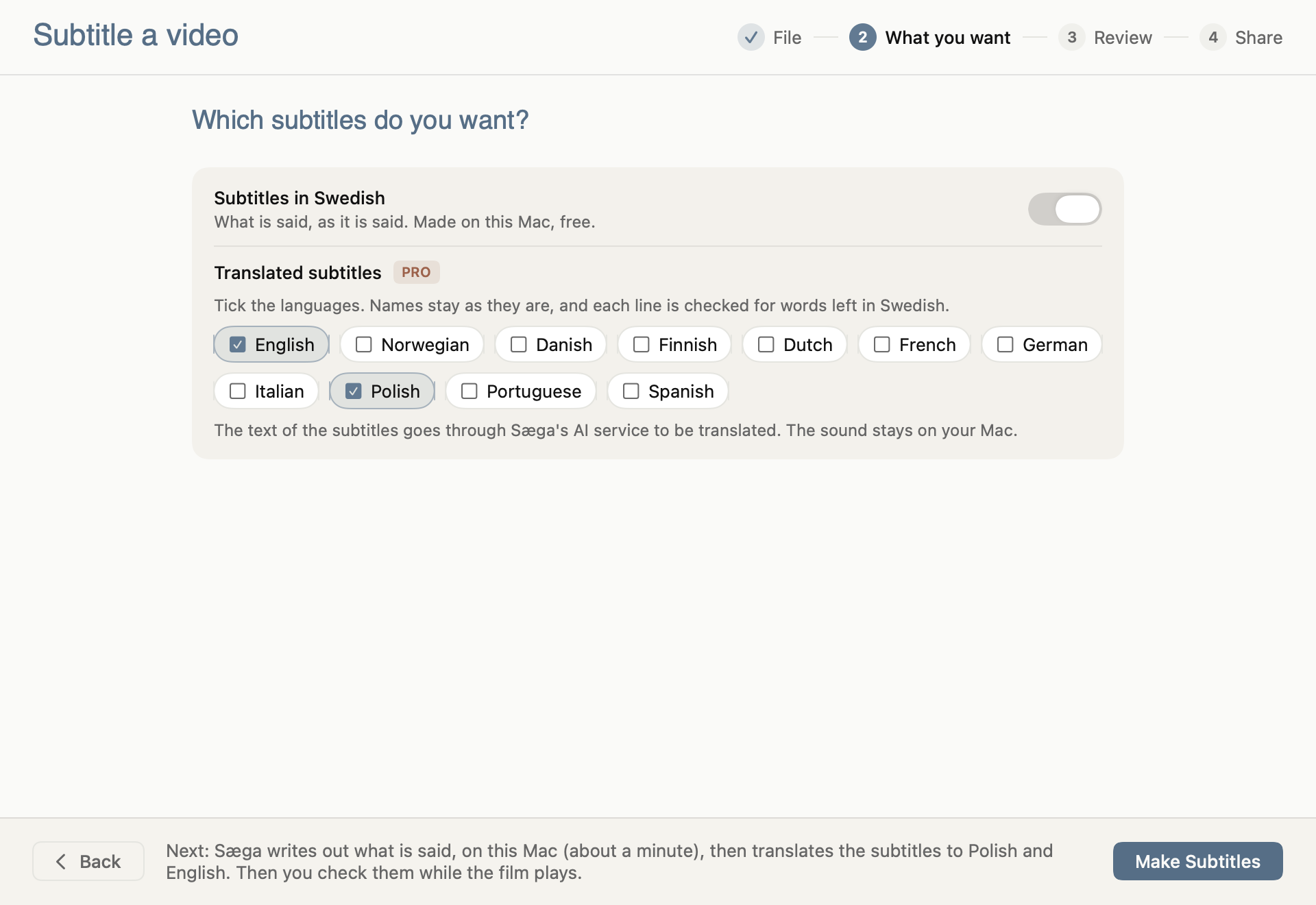
- Subtitles in the film's language: Subtitles in and the language. What is said, as it is said, made on your Mac.
- Translated subtitles (Pro): tick the languages under Translated subtitles. Names stay as you wrote them, and each line is checked for words left in the original language.
- Click Make Subtitles. Sæga first writes out what is said on your Mac, then translates.
3. Review
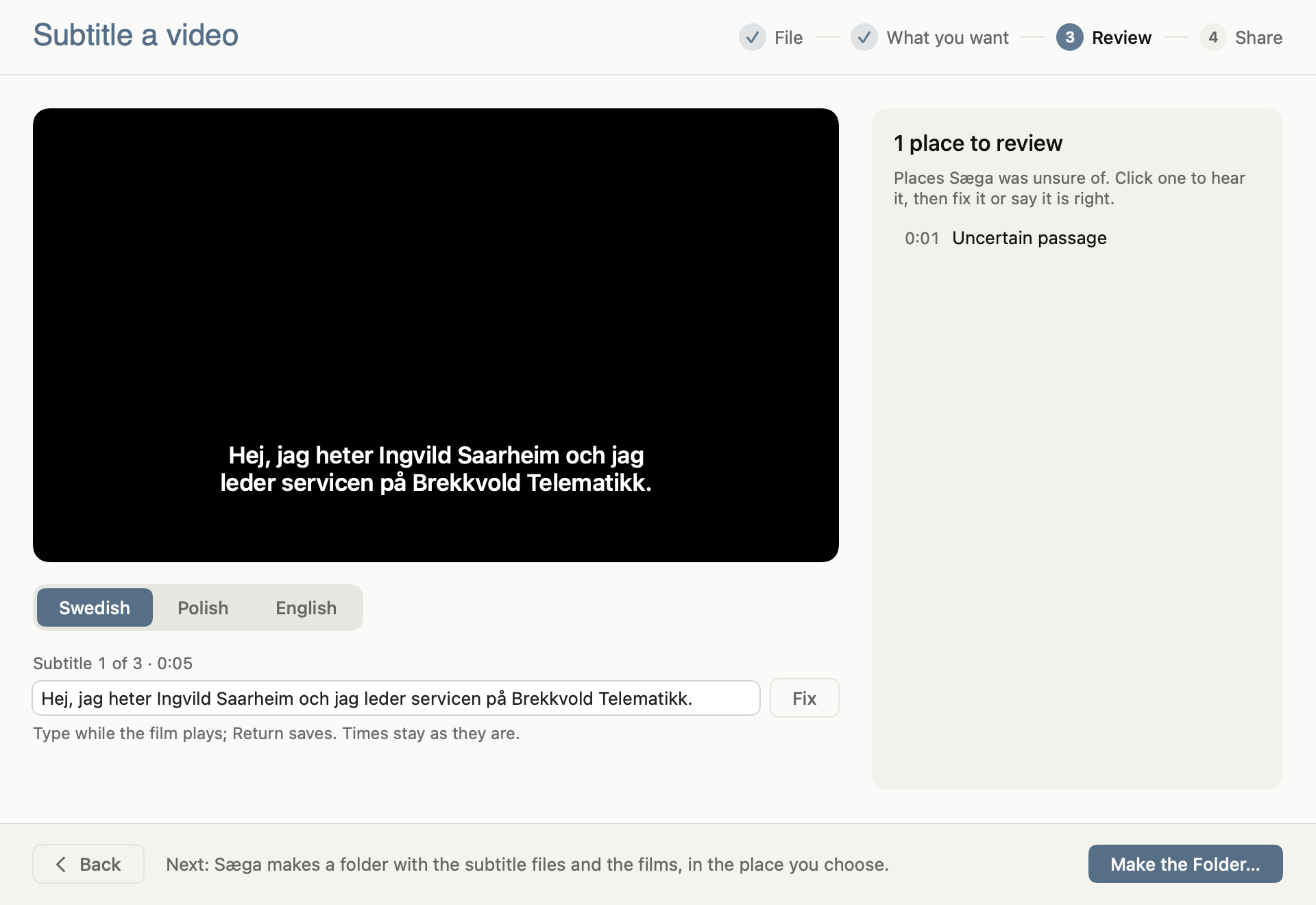
Here you see the film with its subtitles and, on the right, the places Sæga was unsure of.
- Click a place in the list to hear it. A word Sæga was unsure of you correct with Fix, or keep with It's Right.
- An uncertain passage (Uncertain passage) sounds like background talk, radio or music. Choose Keep, Fix or Remove from Subtitles.
- Fix a line while the film plays: type in the field under the film and press Return. The times stay as they are.
- Switch language under the film to read the translations.
- Click Make the Folder… and choose where the folder goes.
4. Share
When the folder is done, Sæga says Your folder is ready. and you open it with Show in Finder. In the folder:
- a subtitle file (.srt) per language, for YouTube, Vimeo and uploaded video on LinkedIn,
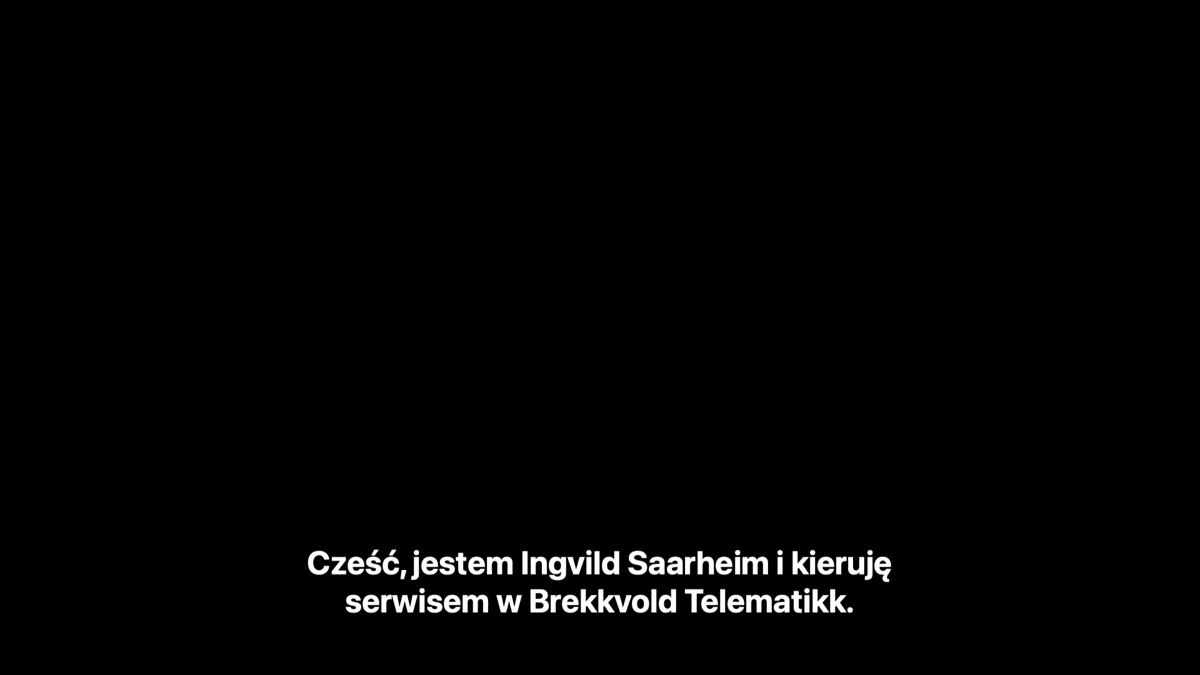
- a film per language with the text in the picture, for Instagram, TikTok, the LinkedIn feed, email or a screen at a fair,
- one film with every language as subtitle tracks to switch on in QuickTime, VLC or your own player,
- a short text file saying which file to use where.
The films take the longest, since each one is made again with the text in the picture. Read the text through before you publish.
If you already have a finished transcript of the film in Sæga, the same folder is in its export menu: For Sharing….
What happens to your data
The film and its sound stay on your Mac. Subtitles in the film's own language are made entirely on the Mac. If you choose translated subtitles, the text, never the sound, goes through Sæga's AI service to be translated. With Local Mode on, nothing is translated.
Common questions
Does it cost anything?
Subtitles in the film's own language, the review and the folder with the films are free. Translated subtitles are part of Pro.
Does the film leave my Mac?
No. The film and its sound stay on your Mac. For translated subtitles, only the text goes through Sæga's AI service.
Can I change a subtitle afterwards?
Yes. In the Review step you fix a line while the film plays, and the times stay as they are. Then make the folder again.
Does it work with sound only?
Yes. You then get the subtitle files, but no films with the text in the picture.